Tokenome documentation
Admin console
Signing in, roles, people and devices, lost-laptop recovery, the audit log, retention and legal holds, sharing coverage, and seats.
Documentation
Admin console
The answers an admin has to give, on one screen: who has access, on which devices, what is shared, what is kept and for how long, and who looked at what. It runs on your own server, next to the index.
Download this guide as a PDF · rendered from this page, so the two cannot drift.
Signing in
There are no passwords. On any enrolled laptop:
tokenome remote consoleThe laptop signs a challenge with its device key, asks the server for a one-time link
and opens it. The link is valid for two minutes, works once, and is bound to that
device. The browser trades it for a session that lasts eight hours. Every request
re-checks the session, the person and the device, so revoking a device or a person ends
their console session immediately. --no-open prints the link instead of
opening a browser.
Roles
| Role | What they see |
|---|---|
| Admin | Everything, and the only role that changes anything, apart from placing holds. |
| Lead | People and Sharing for the groups they lead, and Retention. Read only. |
| Viewer | A read-only role scoped to what you give it: compliance, finance, or the ability to place legal holds. |
| Member | My footprint only. |
Every role also has My footprint. Roles are enforced on the server for every page; the navigation only mirrors them.
People and devices
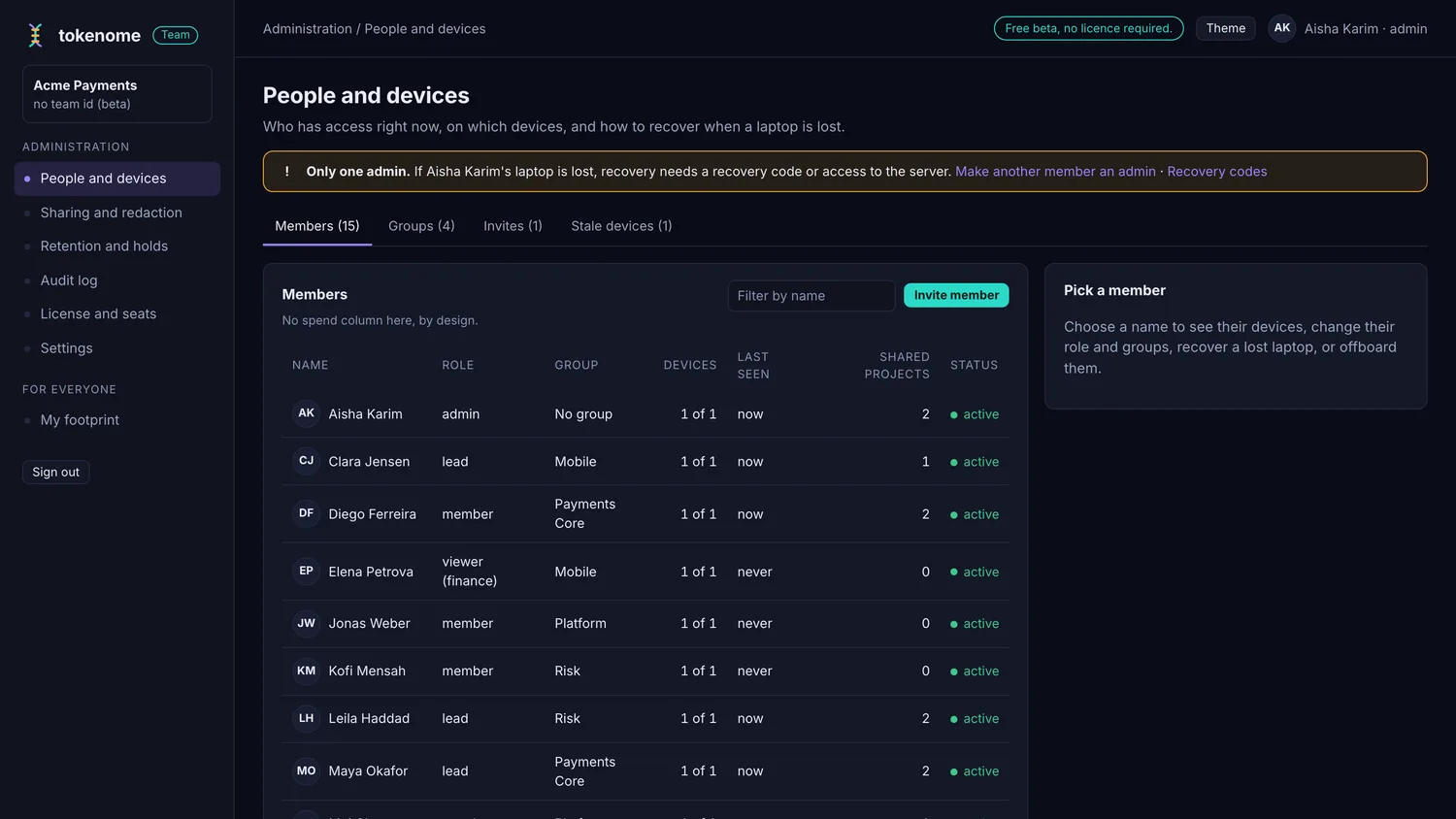
The roster lists everyone with their role, groups, active devices out of total, when they were last seen, and how many projects they share. There is no spend column.
- Invite member creates the person and a one-time enrollment token, shown once. Deliver it out of band. Inviting an admin also returns their eight recovery codes.
- Picking a member opens their devices, where you can rename, revoke or restore one, issue a new-laptop token, change their role and groups, handle a lost device, or offboard them.
- Tabs cover Groups, outstanding Invites, which stop working the moment you cancel them, and Stale devices, meaning anything that has not made a request in thirty days, with one-click revoke.
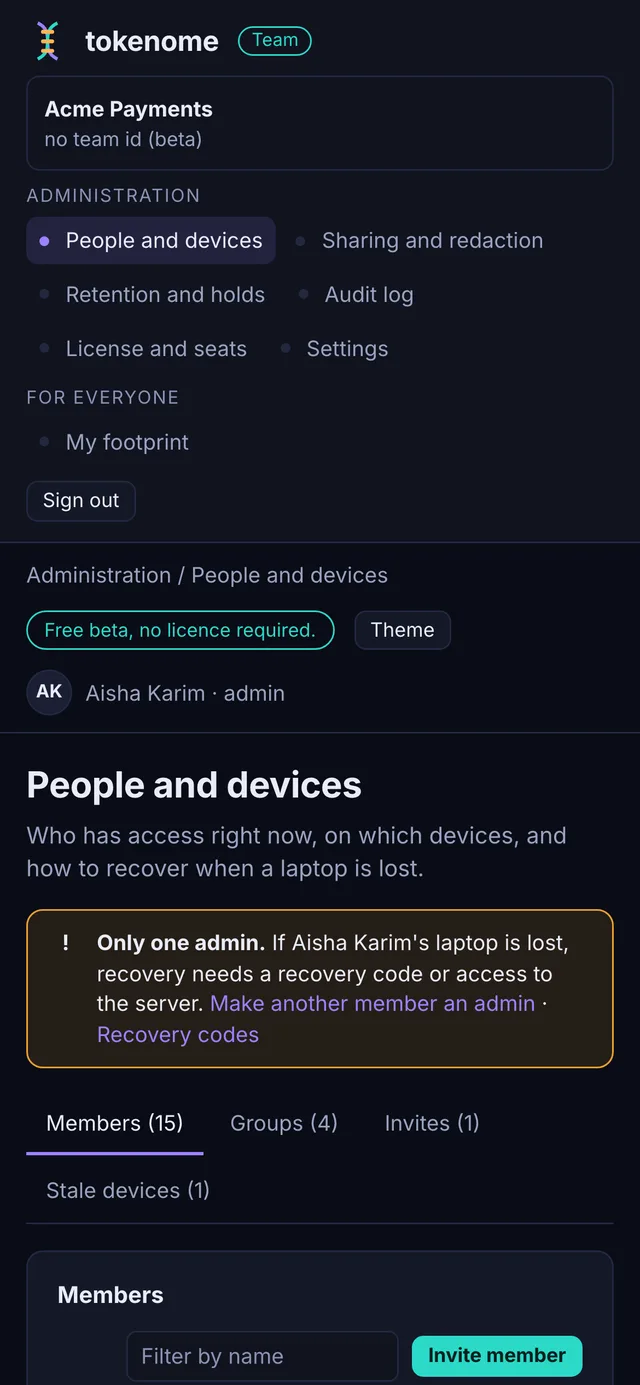
- A banner warns while there is only one admin. Keep two.
Lost laptop, new laptop
A member lost a laptop
- Revoke the device. The member can do it from another enrolled device on My footprint, or an admin can do it here. The next request from the lost machine is refused and its console sessions end.
- Use Lost device to jump to the audit log filtered to that device, and compare with when it went missing.
- Decide whether to keep, hold or purge what they shared. The laptop's own local index is out of the server's reach; disk encryption is what protects that.
- Issue a new-laptop token and have them enroll with
--restore-shares.
A member has a new laptop
If the old one still works they can do it alone: Add a device on My footprint,
then enroll the new laptop with that token and --restore-shares. If the old
one is gone, an admin issues the token and revokes the old device.
An admin lost a laptop
In order of preference: a second admin revokes the device and issues a new-laptop token; or the admin uses one of their recovery codes, which revokes every device of theirs, ends their console sessions, and enrolls the new laptop. Codes are single use, stored only as hashes, and generating new ones voids the old ones. Failing both, whoever runs the deployment can recover the admin from the server side. Control of the deployment is control of the server; recovery does not widen that.
The audit log
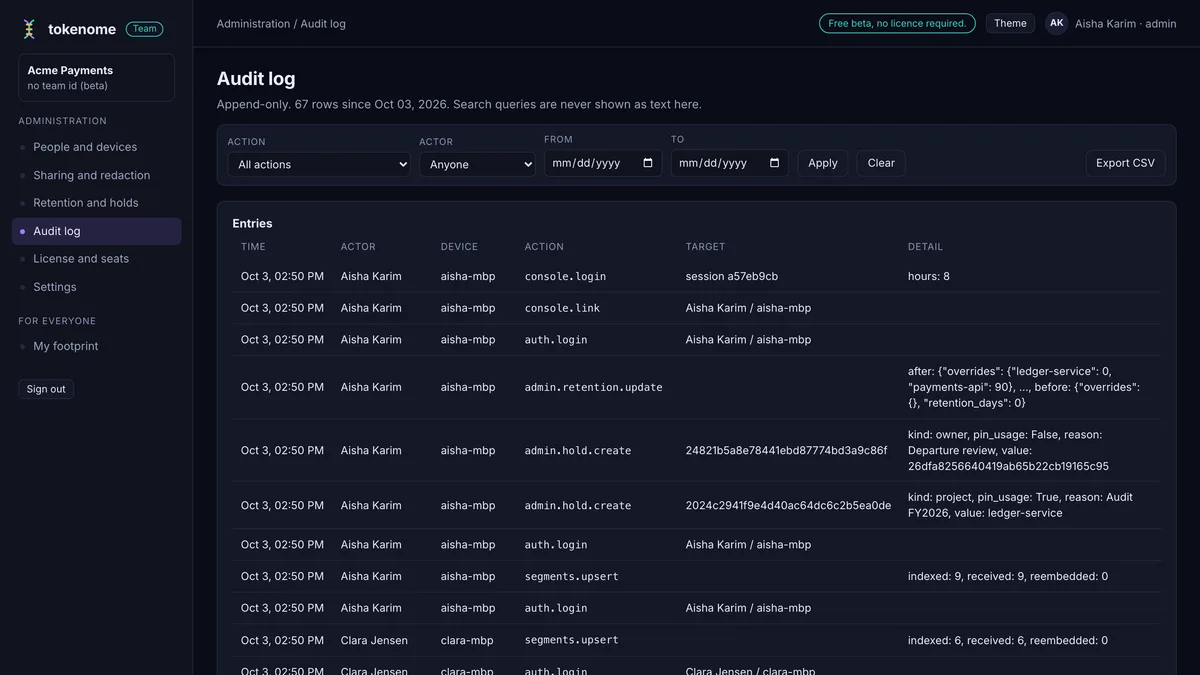
Append-only, filterable by action family, actor and date range, with an export to CSV that is itself recorded. It covers sign-ins and failures, console sessions, sharing, searches, admin actions, retention sweeps, person views, licensing and security events.
A search row never holds the query. It stores a hash of the query, a word count, a category, the names of the filters used but never their values, and whether the query looked like it contained a credential. An auditor who needs to know whether anyone searched for a term asks the server to hash that term and looks for the hash. There is no mode that stores query text, and search rows can be switched off entirely.
Rows age out on their own window, four hundred days by default and ninety for search rows, and a change to the window is itself a row.
Retention and legal holds
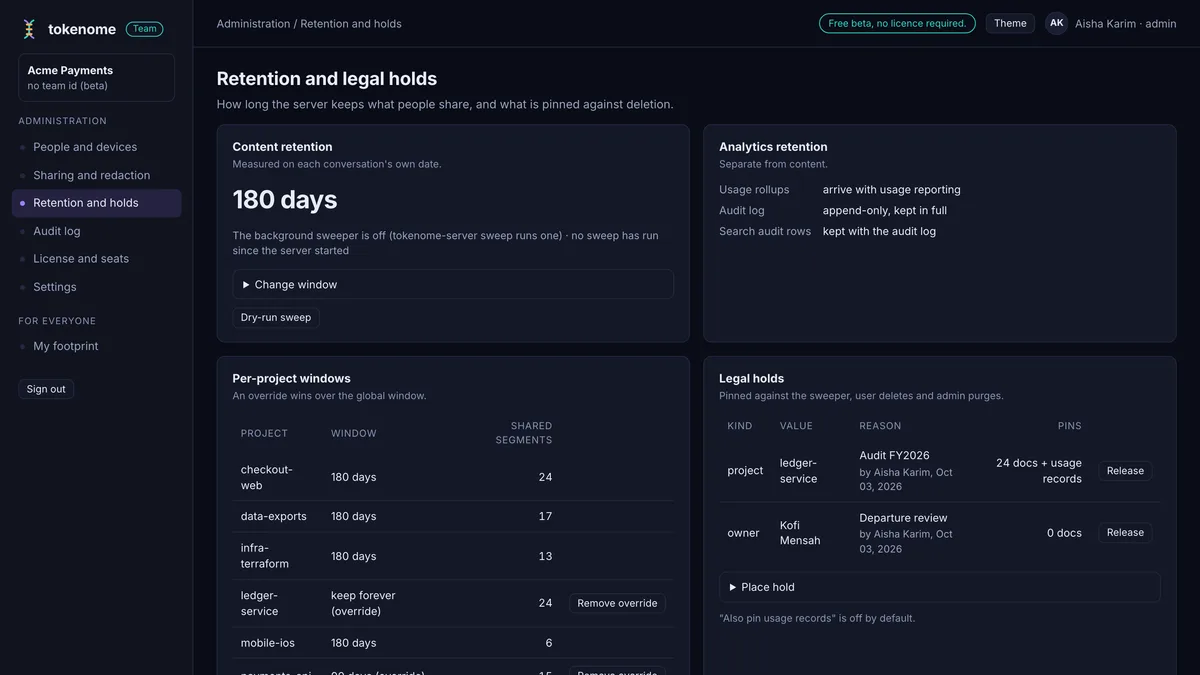
By default the server keeps what people share until they delete it. A retention window removes conversations older than N days, measured on the conversation's own timestamp rather than on when it was shared, and individual projects can tighten or exempt themselves. Zero keeps forever. Change window previews what a sweep would remove, per project, before you save it, and a dry-run sweep plus the last twenty sweeps are on the same page.
A legal hold pins documents against the sweeper and against deletes and purges. Those still remove everything else and report what stayed. Holds are by project, by person, or by one conversation, and they are placed and released here.
Members see the window each of their projects is under, on My footprint and in the Team panel, so the policy is not a secret kept from the people it applies to.
Sharing coverage
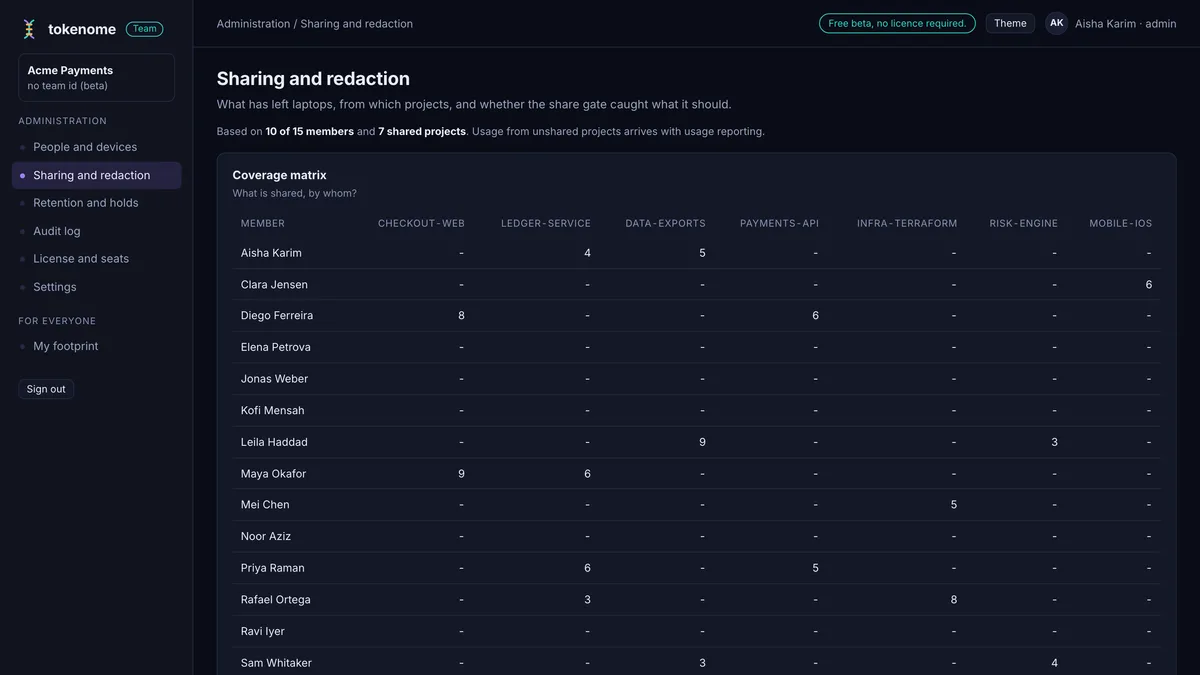
A matrix of people against projects, how many of the team share each project, per-person counts, who is sharing nothing at all, and deletions in the last four weeks. This is the page that tells you whether team search is actually covering the team.
Seats and licensing
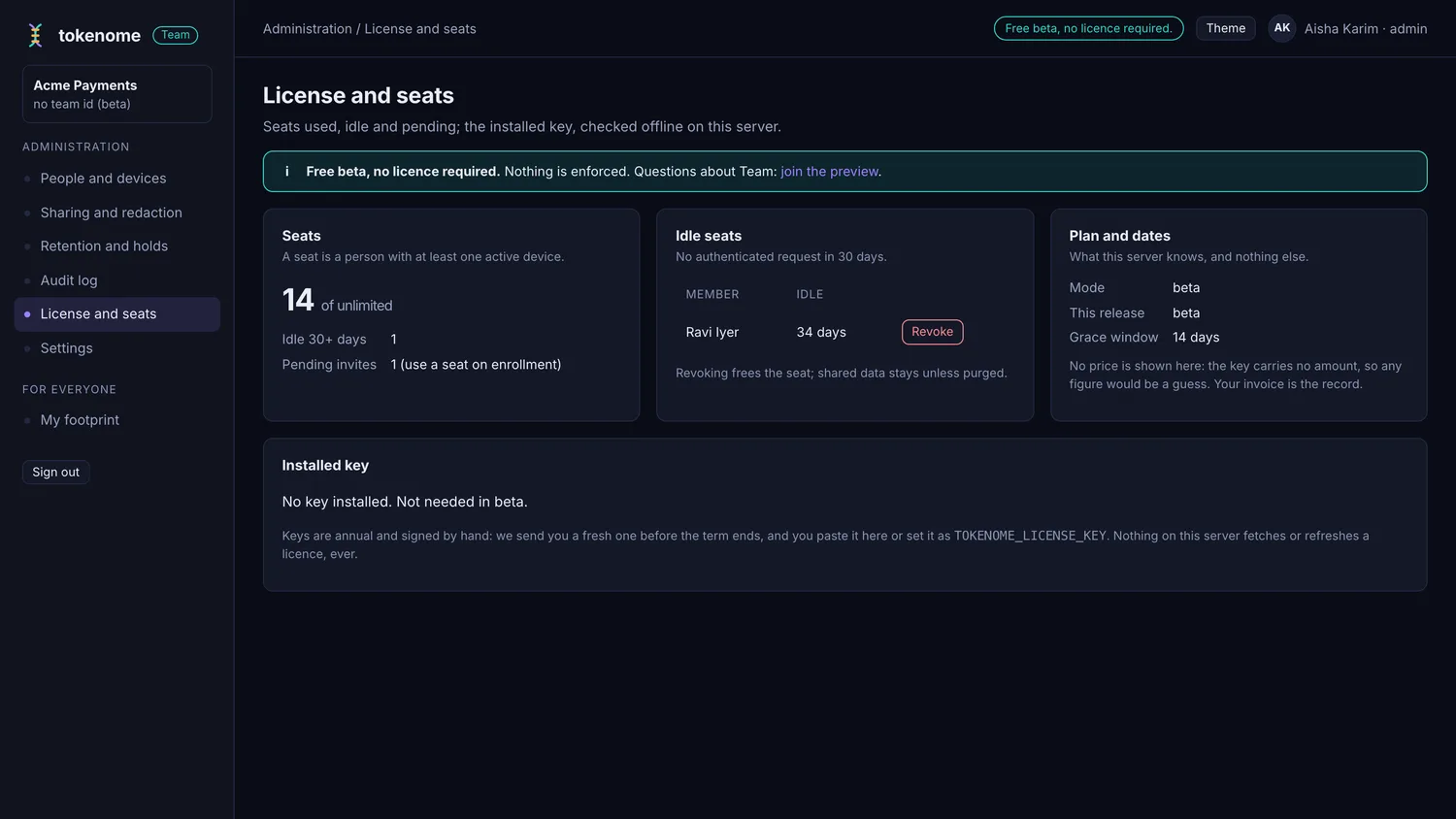
During the beta the page reads "Free beta, no licence required", and that is the whole story: nothing is enforced, there is no seat limit, and there is nothing to install. The page still shows seats in use, who has gone idle and which invites are outstanding, because those are useful on their own. No price is shown, because the server does not know one. The console never contacts a licence service, on any path.
What a member sees
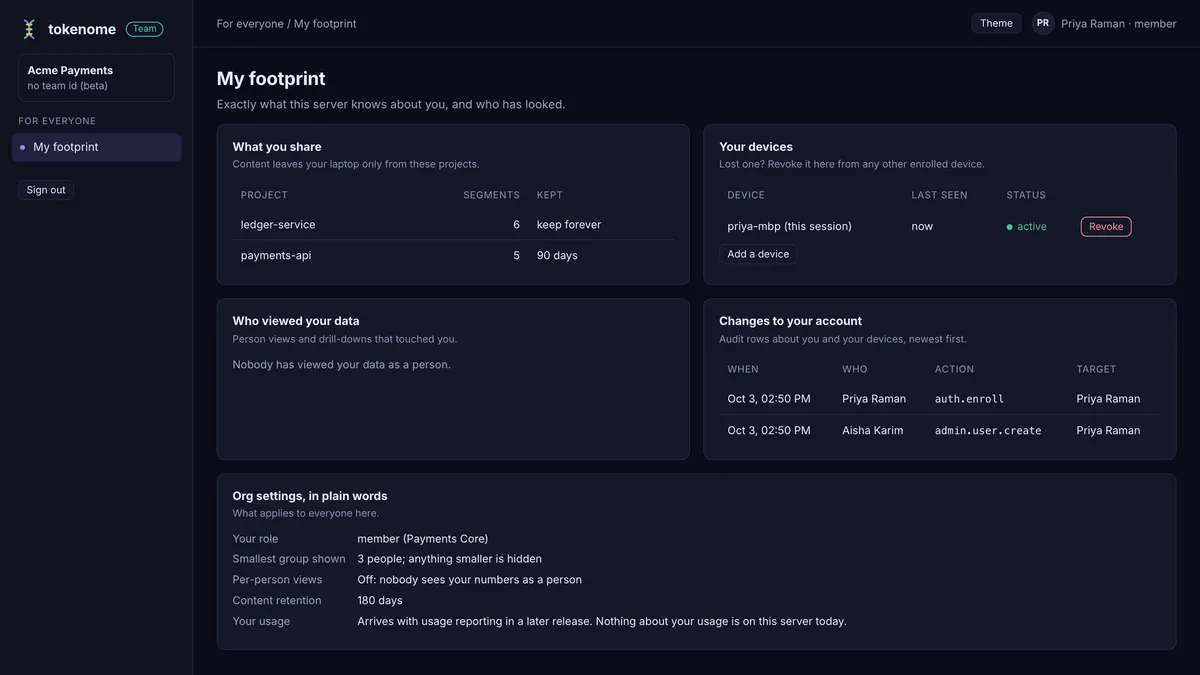
Every member can open My footprint with tokenome remote console without
asking anyone. It shows the projects and segment counts they share, their devices, with
revoke and add-a-device, any change an admin made to their account, every person-level
view of their data, and the organization's settings in plain words. Members see only
this page, and it is the reason the rest of the console does not have to be taken on
trust.